KingsCutter
  • Library
  • Get a quote
  • Pricing
  • Calculator
  • Tutorials
Sign inStart free
Guides›Print settings by product
PRINTING 10 minUpdated: October 2026

Print settings by product

Quick answer

Almost every cutter prints fine in PETG at 0.2 mm layer height, 3 walls and 15% infill, with the base on the print bed. Stamps and imprint cutters need 0.12 mm layers; molds, 4 walls and 25% infill.

What the file handles and what the slicer does

Already handled in the STL
  • Walls with a printable thickness: the designer never takes the cutter wall below 0.6 mm
  • Pieces arrive oriented for printing: each one resting on the print bed, no supports
  • A single closed piece per product (or several separate ones in the kits)
  • Exact sizes in millimeters: the slicer doesn't have to scale anything
→ You set it in the slicer
  • →Material, temperatures and speed for your filament and your printer
  • →Layer height, walls and infill (the tables below give you a starting point)
  • →Reorienting the piece only if needed: the STL already arrives with each piece resting on the print bed, in its print position
  • →Brim, fan and other adhesion settings
1

Find your product in the table

The tables below group the products by family: cutters, pieces that imprint or stamp, and molds and decorations. Each row gives material, layer height, walls and infill, and how to place the piece on the print bed.

2

Load the material and its temperatures

PETG: nozzle at 230-250 °C, print bed at 70-80 °C, fan at 30-50%. PLA: nozzle at 190-220 °C, print bed at 50-60 °C, fan at 100%.

Dry your PETG before printing (65 °C for 6 hours in a filament dryer): wet PETG leaves bubbles, stringing and poorly bonded layers.

3

Set layer height, walls and infill

For cutters, 0.2 mm layer height, 3 walls and 15% infill. For stamps and imprint cutters, 0.12 mm layers: detail and text come out much crisper.

For molds that take silicone or chocolate, 4 walls and 25% infill: the piece has to handle pressure without deforming.

4

Orient the piece and turn off supports

Cutters: with the base on the print bed, cutting edge up. Stamps: with the design face up. Imprint Cutter: with the plate on the print bed and the walls pointing up.

None of these products needs supports if it's oriented correctly. If the slicer adds them on its own, check the orientation before turning them off.

5

Nail the first layer

Tall, thin pieces like cutters come loose easily. A 3-5 mm brim keeps them in place and peels off by hand when the print is done. On the Sandwich, a brim is pretty much a must.

Print the first layer slower and clean the print bed with isopropyl alcohol before you start.
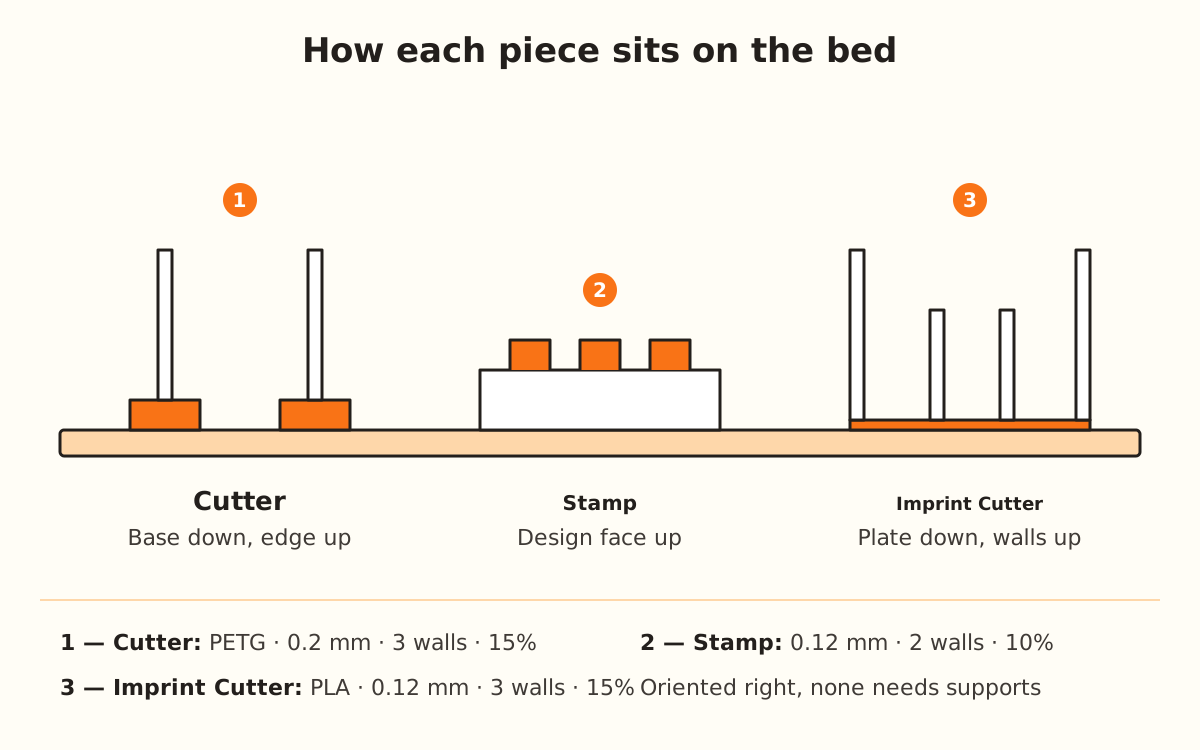
Cutter, stamp and imprint cutter seen from the side on the printer's print bed, each in its correct orientation.
Orientation decides whether you need supports: with the base, the face or the plate resting properly, none of these pieces needs them.
Quick tips
Dry your PETG before printing: it's the difference between a clean cutter and one covered in strings.
If your slicer supports variable layer height, use 0.12 mm only on the last layers of the cutting edge and 0.2 mm for the rest.
A 3-5 mm brim on any tall, thin piece: it costs next to no filament.
Print a small cutter (50-60 mm) first to calibrate before the big piece.
If PETG sticks too hard to a glass print bed, drop the bed by 5 °C.
CuttersMaterial · layer · walls · infillOn the print bed
CutterPETG · 0.2 mm · 3 · 15%Base down
Size setPETG · 0.2 mm · 3 · 15%Base down
Multi-cutterPETG · 0.2 mm · 3 · 15%Base down
Multi-piecePETG · 0.2 mm · 3 · 15%Base down
SandwichPETG · 0.2 mm · 3 · 15%Base down, with brim
Filled KitPETG · 0.2 mm · 3 · 15%Base down
Imprint and stampMaterial · layer · walls · infillOn the print bed
Imprint CutterPLA · 0.12 mm · 3 · 15%Plate down
StampPLA or PETG · 0.12 mm · 2 · 10%Face up
Brigadeiro StampPLA or PETG · 0.12 mm · 2 · 10%Face up
Texture RollerPETG · 0.12-0.2 mm · 3 · 10%No supports
Molds and decorationsMaterial · layer · walls · infillOn the print bed
Silicone MoldPETG · 0.2 mm · 4 · 25%Base down
Word MoldPETG · 0.2 mm · 4 · 25%Base down
Cake TopperPLA or PETG · 0.2 mm · 3 · 15%Flat, no supports
StencilPLA · 0.2 mm · 2 · 5%Flat, no supports
EjectorPETG · 0.2 mm · 3 · 15%No supports
TemperaturesPETGPLA
Nozzle230-250 °C190-220 °C
Print bed70-80 °C50-60 °C
Fan30-50%100%
Speed40-60 mm/s50-80 mm/s
Drying first65 °C · 6 h45 °C · 4 h

The defect you see and what to adjust first

Thin strings between parts
Dry the filament and lower the nozzle by 5 °C
The corners lift
A 3-5 mm brim and the print bed at the material's temperature
The cutting edge comes out rounded
0.12 mm layers on the last layers
Blurry stamp text
0.12 mm layers and a lower speed
The wall splits along the layers
Raise the nozzle temperature by 5-10 °C
The mold deforms with the silicone
4 walls and 25% infill, in PETG
It sticks too hard to the print bed
Drop the bed by 5 °C or use a layer of glue stick

Troubleshooting

The cutter comes out covered in strings
Cause: Wet PETG or a nozzle that's too hot.
Fix: Dry the filament at 65 °C for 6 hours and lower the nozzle by 5 °C.
If it persists: Increase retraction in your slicer in 0.5 mm steps.
The piece comes off the print bed halfway through the print
Cause: Too little contact area on tall, thin pieces.
Fix: Add a 3-5 mm brim and clean the print bed with isopropyl alcohol.
If it persists: Print the first layer slower and check your bed leveling.
The wall layers split when you press
Cause: Temperature too low or fan too high for PETG.
Fix: Raise the nozzle by 5-10 °C and keep the fan at 30-50%.
If it persists: Go up to 3 or 4 walls and make sure the filament is dry.
You can't read the stamp's text
Cause: Layers too thick for the size of the letters.
Fix: Print at 0.12 mm layer height and slower.
If it persists: Make the stamp bigger or check that “Thicken thin lines” is still on (it comes on by default; the switch is in “Full control”).
The slicer adds supports everywhere
Cause: The piece got rotated when importing it or reorienting it in the slicer: it ended up with the cutting edge or the design face down.
Fix: Import the STL again just as it downloads, or rotate it: cutters with the base down, stamps with the design face up.
If it persists: Turn off supports and check the layer preview before printing.
The mold deformed when you filled it with silicone
Cause: Too few walls or too little infill for the pressure of the silicone.
Fix: Reprint it in PETG with 4 walls and 25% infill.
If it persists: Raise infill to 30% and set the mold on a flat surface while filling it.

Frequently asked questions

Do these settings work on any printer?
They're a starting point for FDM printers with a 0.4 mm nozzle. Every printer and every filament brand is a bit different: adjust in 5 °C steps and one wall at a time.
Why does the stamp use fewer walls than the cutter?
The stamp is solid and the detail is on the face: 2 walls and 10% infill are enough. The cutter is a thin wall that has to handle pressure, so it gets 3.
Can I print several cutters together?
Yes. Leave at least 10 mm between pieces and use a brim on all of them.
What if I print a whole cutter at 0.12 mm?
The cutting edge comes out sharper, but it takes a lot longer. That's why variable layer height is worth it: fine only where the cutting edge is.
Do I need a special nozzle?
For kitchen pieces, a stainless steel nozzle is better than brass. For everything else, the stock 0.4 mm nozzle will do.

Ready to make yours?

Upload your image and get a print-ready STL in seconds.

Make my piece →

Keep reading

PLA, PETG and TPU compared →Best filaments for each product →Basic cutter →Custom stamp →
KingsCutter

The most complete 3D cutter generator. Designed for bakers, available in 15 languages.

Quick contact
Product
  • 3D Editor
  • Tools
  • Library
  • Pricing
  • How it works
  • Gallery
Services
  • Get a quote
  • For sellers
  • Affiliates
  • Blog
Legal
  • Terms
  • Privacy
  • Refunds
  • Comparison
  • FAQ
  • Contact

© 2026 KingsCutter · Made for bakers around the world

kingscutter