File formats: STL, OBJ, 3MF and SVG
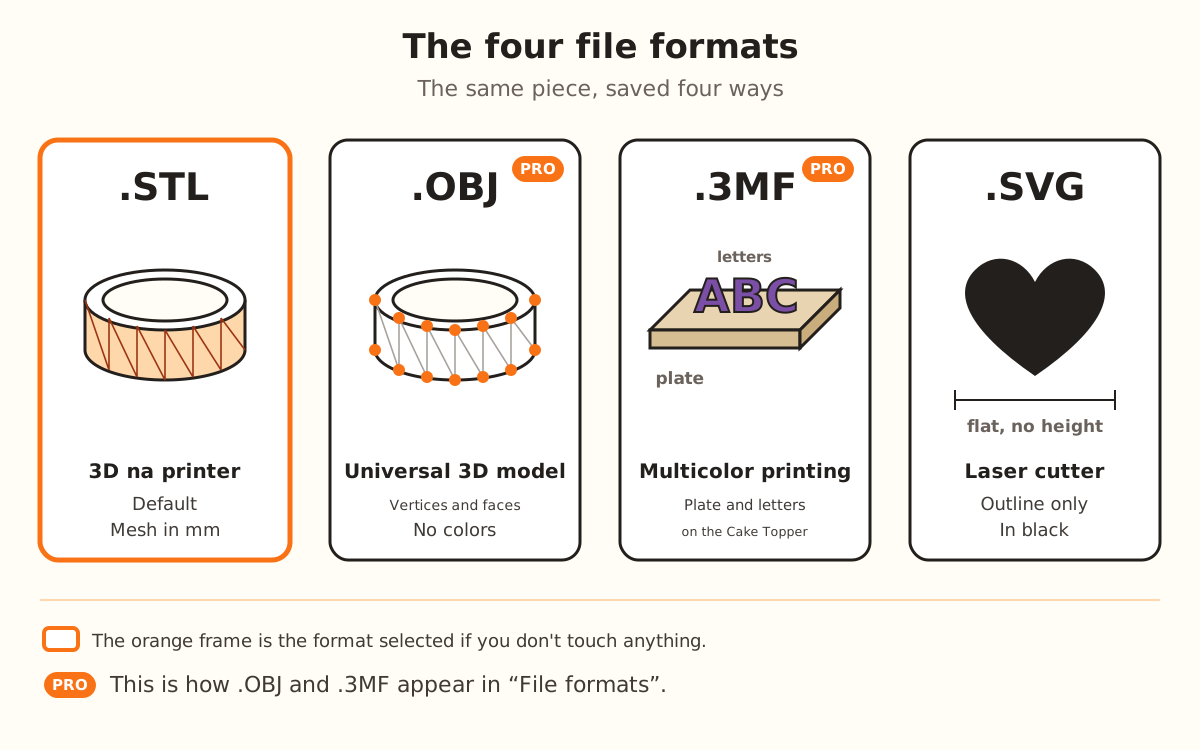
STL is the file for your 3D printer and it's the default. OBJ has the same piece as text and 3MF, ready for the slicer; both are Pro and Studio. SVG is the flat outline, for laser.
What the site does and what's up to you
- Builds the file in your browser from the piece you see in the viewer, without redesigning it
- Leaves each piece resting on the print bed: some products download rotated compared to the viewer
- Names the file after your design, without accents or spaces
- Shows you, before you download, the piece's size in centimeters and an approximate print time
- Keeps count of your free downloads for the month and tells you how many you have left
- →Picking the format in “File formats” before you download
- →Opening the file in your slicer and choosing the material, layer height and infill there
- →Signing in to your account: you don't need it to design, you do to download
- →Saving the design with “Save to My designs” if you want to open it again
Four formats, two kinds of file
STL, OBJ and 3MF are files of the 3D piece: they open in your printer's slicer. STL and OBJ carry the shape alone, as a mesh of triangles. The 3MF carries the piece as one object resting on the bed; on the Cake Topper it carries two, the plate and the letters, each with its own color.
SVG is something else: a flat drawing. It carries only the outline of your image once traced, in black, with no height or thickness. It's for a laser cutter or for further editing the drawing in a vector program.
The format doesn't change the piece: it's the same one, saved a different way.
Finish the design
The design regenerates on its own with every change. At the end of step 3 there's “Download my design →”. While the piece is generating, the button says “Generating…” and can't be clicked.
If you try to download before there's a piece, the site warns you with “Generate model first”.
Pick the format
In the right-hand panel, open “File formats” (it starts closed). The list has “.STL — 3D printer”, “.SVG — Laser cutter”, “.OBJ — Universal 3D model” and “.3MF — Multicolor printing”. The selected one has a ✓.
STL is the one selected if you don't touch anything, and it shows the file size in KB. .OBJ and .3MF carry the “PRO” badge.
If your plan isn't Pro or Studio and you pick .OBJ or .3MF, the download window warns you “3MF is part of the Pro plan” (or “OBJ is part of the Pro plan”) and offers “Download STL” instead.
Name it
Type the name in “Your design's name”. Below it you see “This will be your file's name when you download it” with the extension of the chosen format.
The file is named without accents, in lowercase and with hyphens instead of spaces, up to 60 characters. You can also change the name in the download window, with “Edit name”.
Sign in to your account
If you're not signed in, clicking “Download my design →” opens “Before you download, create your free account”. You can go on with “Continue with Google” or with your email, and the download continues right there.
Download the file
The window shows a preview, the name, the size (“width × height cm · height cm tall”) and the approximate print time. Click “Download STL” (or the format you chose).
On the free plan, below the button you see how many free downloads you have left this month. When it's done, “Your design is ready” appears: “The file is already in your Downloads folder.”