KingsCutter
  • Library
  • Get a quote
  • Pricing
  • Calculator
  • Tutorials
Sign inStart free
Guides›Signing in to your account
YOUR ACCOUNT 5 minUpdated: October 2026

Signing in to your account

Quick answer

KingsCutter has no passwords: you sign in with Google or with a 6-digit code sent to your email. You don't need an account to design; it's required to download, to save a design and to open My Workshop.

What the site does and what's up to you

Handled by the site
  • Opens the sign-in window on top of the page you're on, without taking you away from your design
  • Uses the same path to sign in and to create the account: if it's your first time, the account is created on its own
  • Gives you 3 free credits when you create the account
  • Opens Google in a separate window, so your page stays where it is
  • In the main window, checks the code as soon as you fill in the 6 boxes
→ Up to you
  • →Ticking the terms box before choosing how to sign in
  • →Using your regular email: temporary emails can't open an account
  • →Looking for the code in your inbox or your spam folder
  • →Letting the browser open the Google window

An account with no password

Your account is your email. Every time you sign in, the site sends you a new code or lets you in with that email's Google account. There's no password to remember or change.

You can design and view your piece in 3D without signing in. The account is needed when something has to be saved under your name: when you download the file, when you click “Save to My designs” and when you open My Workshop.

There are two sign-in windows. The main one opens with “Sign in”, at the top of the site's pages. The download one appears when you click “Download my design →” without being signed in: “Before you download, create your free account”.
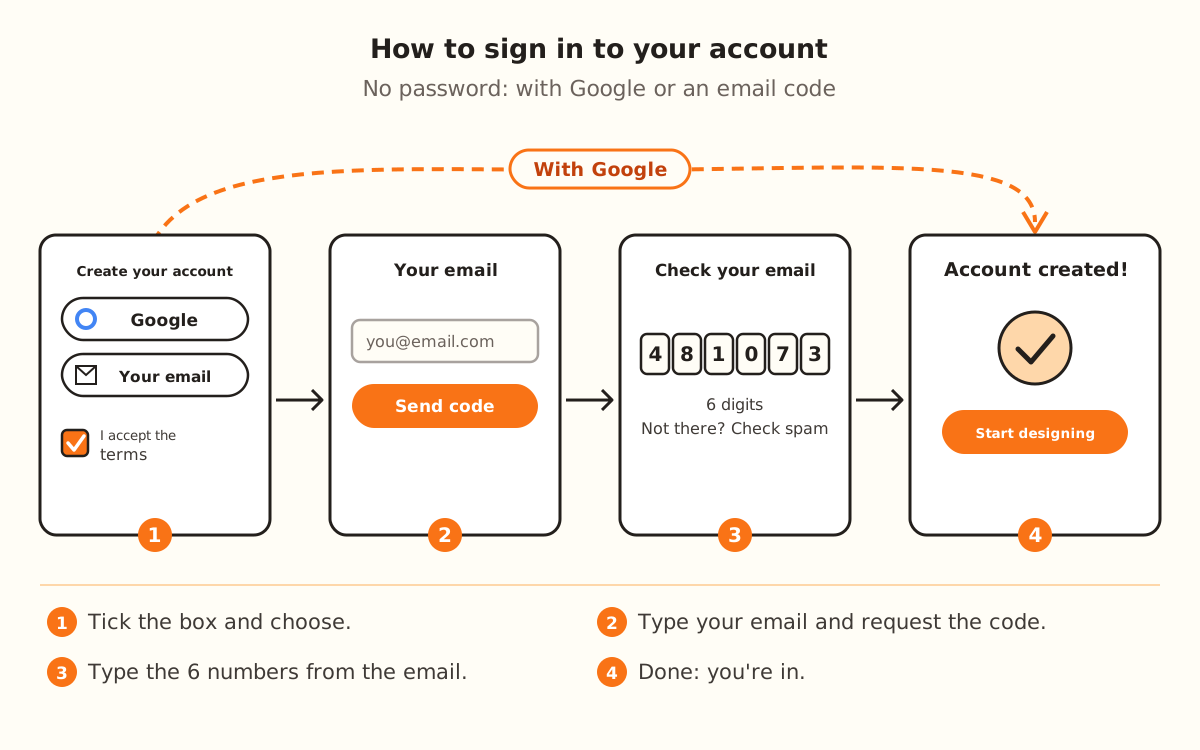
The sign-in path: tick the terms box, choose Google or email, type the 6-digit code and see “Account created!”.
With Google you skip the email and the code; with your email, the code arrives in a moment.
1

Click “Sign in”

It's at the top, in the site's bar and in the designer's bar. The window opens on top of what you were doing, titled “Create your free account”: it's the same one for signing in and for creating the account.

If you open the /login page, you see the same window; once you're in, it takes you to My Workshop.

2

Accept the terms

Tick the box “I accept the terms of use, acknowledge the privacy policy and confirm I am of legal age.” Without the box, neither way of signing in goes ahead and you see “Please tick the box to accept the terms and the privacy policy first.”

3

Sign in with Google

Click “Continue with Google”. A separate window opens for you to choose your account; your page stays where it was.

If the browser blocks the window, the whole tab goes to Google and, when you're done, comes back to the page you were on.

4

Or sign in with your email

Click “Continue with your email”. In “Your email” type your address and click “Send code →”. The screen says “We send you a code to sign in. No passwords.”

With “← Other options” you go back to choosing Google.

5

Type the code

In “Check your email” there are 6 boxes. Type the numbers from the email: when you fill in the sixth, the code is checked on its own. You can also click “Sign in”.

If you don't see it, check your spam folder. With “← Change email” you fix the address.

6

Done

You see “Account created!” and “Start designing →”. Click the button, or close the window: you're in. To leave, use “Sign out” in the My Workshop menu.

Quick tips
If you're going to download, sign in from the download window: when you're done you go straight to the file, with your design intact.
Request a single code and wait: if you request several, the most recent one is the one that works.
Always use the same email: your credits, your plan and your designs live in that account.
If your email is Gmail or has a Google account, “Continue with Google” is the fastest: you don't wait for any email.
In the download window you can leave your WhatsApp (it's optional) so we can let you know about new products.
What you doAccount needed?
Design and view the piece in 3DNo
Download the fileYes
“Save to My designs”Yes
Open My WorkshopYes: without a session it takes you to the sign-in window
LimitHow much
Codes requested from the same connection5 every 15 minutes
Codes requested for the same email3 every 15 minutes
Attempts to type the code from the same connection10 every 15 minutes
Free credits when you create the account3

If something didn't go as expected

Nothing happens when I click Google or email
Tick the terms box and click again
The code doesn't arrive
Check your spam folder and wait a moment before requesting another
The Google window doesn't appear
Allow pop-ups for the site or sign in with your email
The code doesn't work
Use the one from the latest email and type all of it, the 6 numbers
My email can't open an account
If it's a temporary email, use your regular email
I want to save and “Sign in to save your design” appears
Click “Sign in” at the top, sign in and click “Save to My designs” again

Troubleshooting

“The code is invalid or has expired. Request a new one.” appears
Cause: The code was mistyped, it expired or it's from an earlier email.
Fix: Click “← Change email”, request a new code and use the one from the latest email.
If it persists: Sign in with “Continue with Google” if your email is a Google one.
“We've already sent several codes to this email…” appears
Cause: 3 codes were requested for that email within 15 minutes.
Fix: Look for the most recent one in your inbox or in spam, or wait the minutes the notice says.
If it persists: Sign in with Google.
“Too many codes were requested from this connection in a short time…” appears
Cause: 5 codes were requested from your connection within 15 minutes.
Fix: Wait the minutes the notice says and try again.
If it persists: Sign in with Google, which doesn't go through this limit.
“That's a temporary email address. Use your regular email to create your account.” appears
Cause: Temporary emails can't open an account.
Fix: Type your personal or work email.
If it persists: Sign in with your Google account.
“Too many accounts were created from this connection today…” appears
Cause: There's a cap on new accounts per connection per day.
Fix: Sign in with an account you already have.
If it persists: Try again the next day.
“We couldn't verify that you're human. Reload the page and try again.” appears
Cause: The automatic check that you're not a robot didn't finish.
Fix: Reload the page and request the code again.
If it persists: Try another browser or sign in with Google.
“We couldn't complete the Google sign-in. Try again or use your email.” appears
Cause: The Google sign-in didn't finish.
Fix: Click “Continue with Google” again and complete the window.
If it persists: Sign in with your email and the 6-digit code.

Frequently asked questions

Do I need an account to design?
No. You design and view the piece in 3D without signing in. The account is required to download, to save a design and to open My Workshop.
Do I have to create a password?
No. You sign in with Google or with a 6-digit code we email you each time.
Are signing in and creating the account the same thing?
Yes. If your email has no account, it's created the first time you sign in, with 3 free credits.
Do I lose my design if I sign in halfway through?
No. The window opens on top of the designer and Google opens separately. If the browser blocks that window and takes you to Google, the download window saves the design in progress first.
How do I sign out of my account?
With “Sign out”, at the bottom of the My Workshop menu or under “More” on your phone.

Ready to make yours?

Upload your image and get a print-ready STL in seconds.

Sign in to my account →

Keep reading

How to create your first cutter →File formats: STL, OBJ, 3MF and SVG →Publish to your store from the designer →
KingsCutter

The most complete 3D cutter generator. Designed for bakers, available in 15 languages.

Quick contact
Product
  • 3D Editor
  • Tools
  • Library
  • Pricing
  • How it works
  • Gallery
Services
  • Get a quote
  • For sellers
  • Affiliates
  • Blog
Legal
  • Terms
  • Privacy
  • Refunds
  • Comparison
  • FAQ
  • Contact

© 2026 KingsCutter · Made for bakers around the world

kingscutter