Batch export: several sizes at once
On the Pro or Studio plan, under “For selling in volume” you pick “Multiple sizes” or “Multiple images”: one piece in several sizes, or a different drawing per piece. You get a ZIP of STLs or a 3MF plate.
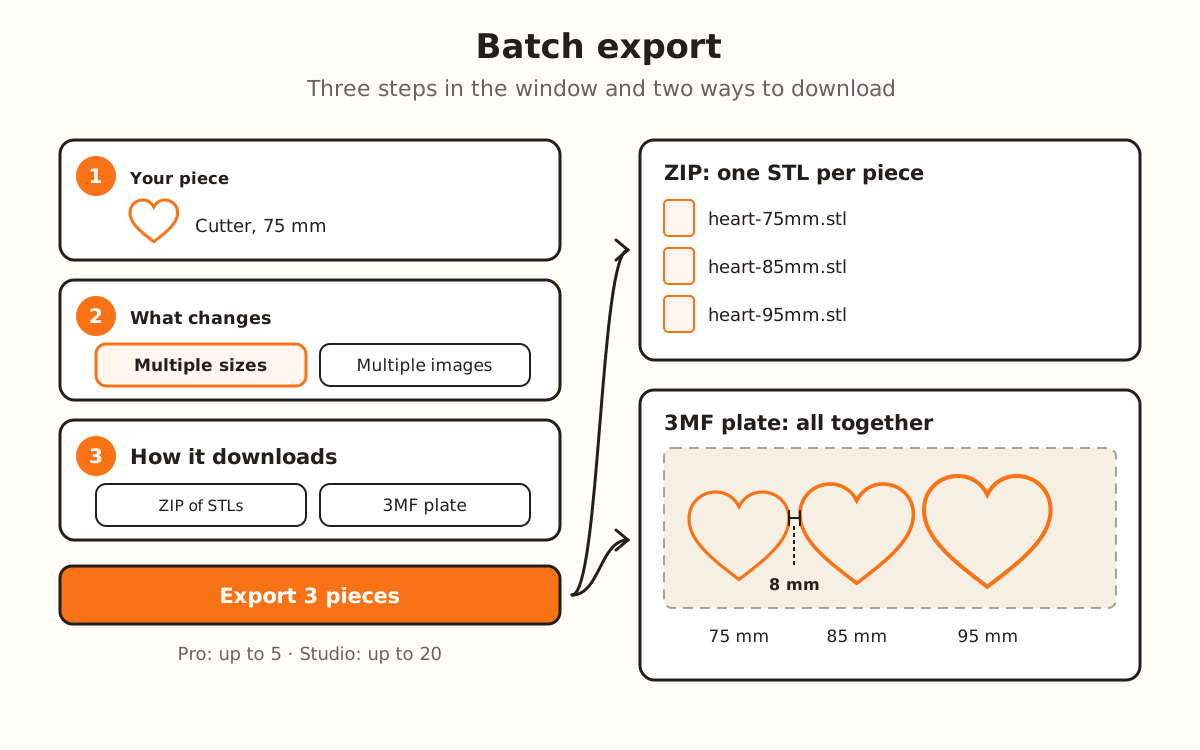
What the batch does and doesn't do
- Builds each piece with the same engine as the designer, one after another, and shows you how each one is going
- Repeats your current settings on every piece: thickness, walls, relief; only the size or the drawing changes
- With “Width and Height”, it scales both measurements in the same proportion: the piece changes size, not shape
- Traces each PNG or JPG image with your tracing settings; an SVG doesn't go through those settings
- Leaves the pieces ready to print: oriented and with the wall text already flipped
- Names each file with your design's name and the size (for example, heart-75mm.stl), or with each image's name
- →Changing different things on each piece: in a batch only the size or only the drawing changes
- →Choosing the material or the print settings: that's done in your slicer
- →More pieces than your plan allows: 5 per batch with Pro and 20 with Studio; for sizes, up to 8 different ones
- →Fixing an image that can't be traced: that piece comes out with a warning and the rest carry on
How the batch works
Batch export repeats your piece many times in a single download. You have two ways: “Multiple sizes”, the same piece in several measurements, and “Multiple images”, a different drawing on each piece with your current settings.
Everything else stays the same on every piece: it's what you already set in the designer and want repeated. In “Multiple sizes” only the size changes, between 15 and 250 mm; in “Multiple images”, only the drawing.
When you tap export, the server checks your plan and the product just once. Then the pieces are built in your browser, one at a time, and at the end a single file downloads: a ZIP with one STL per piece, or a 3MF plate with all the pieces 8 mm apart, ready for the slicer.
It's part of the Pro and Studio plans: with Pro, up to 5 pieces per batch; with Studio, up to 20. On those plans downloads are unlimited, so the batch doesn't use up any allowance.
Build your piece and open the batch
In the designer, upload your drawing, pick the product and leave the settings the way you want them repeated. In the right-hand column, under “For selling in volume”, tap “Multiple sizes” or “Multiple images”.
Without a paid plan, the window says “Batch export is for paid plans”, with “See plans” and, if you haven't signed in, “Log in”.
Check “Your piece”
At the top you see the product that will come out and the drawing that gets repeated. If you want a different one, tap “Change product”: the list only shows the products that support that mode, free ones first. The ones that need a plan carry their tag, PRO or STUDIO.
Choose what changes on each piece
Under “What changes from piece to piece”, “Multiple sizes” is “The same piece in several sizes” and “Multiple images” is “A different drawing on each piece”. You can switch between them in the same window.
Set the sizes or pick the images
In “Sizes (mm)”, the first one is your piece's size. Change each number, tap “Add size” to add one (the last one plus the step) or the × to remove it.
For several at once, use “Several at once”: “From” (your current size), “Step” (10 mm) and “How many” (3). The window shows the sizes it will set, like “→ 75 · 85 · 95 mm”; tap “Use these”.
In “Multiple images”, tap “Choose images” and select your PNG, JPG or SVG files, up to your plan's limit. The list shows the name each piece will get; the × removes one.
Choose how it downloads
Under “How it downloads”, “ZIP with one STL per piece” puts each piece in its own file, with its name; “3MF plate” puts all the pieces in one file, laid out apart, ready for the slicer. Below it you see an example of the file name.
Export
At the bottom it says how many pieces your plan allows. Tap “Export 3 pieces” (the number changes with your batch). While it works, the window says “Piece 1 of 3…” and checks off each piece; “Cancel” stops it without downloading anything.
When it's done the file downloads and the window tells you, for example, “3 pieces ready: heart-lote.zip downloaded.”. If a piece failed, the list says which one and why; the others download anyway.