Photo to sell: product photos of your piece
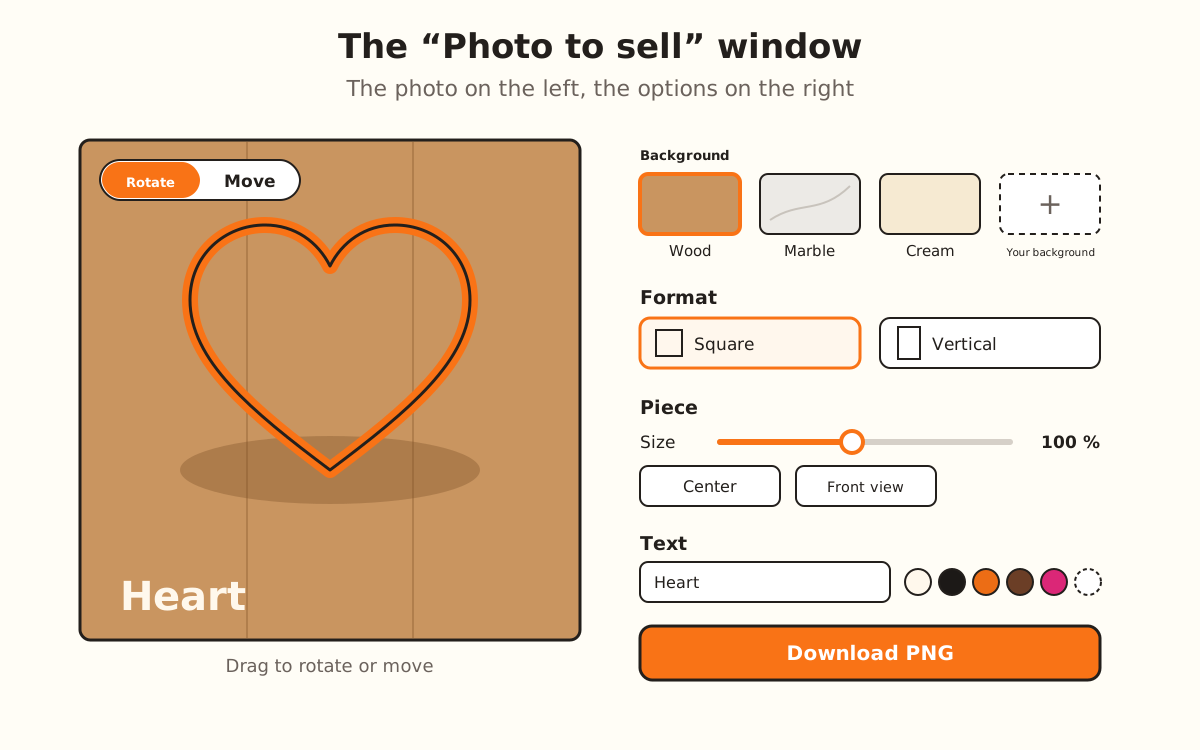
With your piece built, tap “Photo to sell”: the piece shows up on wood, marble, cream or a photo of yours, square or portrait, with the design's name. You rotate it, move it and download a PNG. Free on every plan, no AI.
What the photo does and doesn't do
- Draws your piece exactly as it is, from the same 3D file you see in the viewer: all its pieces and the colors by part, facing front as in the viewer
- Places it on a wood, marble or cream background, or on a photo of yours, with its shadow on the table
- Builds the photo square (1080 × 1080 pixels) or portrait (1080 × 1350)
- Writes your design's name at the bottom left, and if it's long it fits it on two lines
- Picks the text color on its own to suit the background: white on wood or on your photo, black on marble or cream
- Downloads the photo as a PNG, with your design's name in the file name
- →Making anything up: there's no AI; the photo shows your piece as it is
- →Showing the cookie or the piece in use: it's the printed piece on a table
- →Uploading your background photo: it opens in your browser and isn't stored anywhere
- →Posting it: you download it and upload it yourself to Instagram, Etsy, Shopee or your store
How the photo is built
“Photo to sell” takes the piece you just generated in the designer and draws it separately from the viewer, on a table. It doesn't go through any AI: what you see is your piece, with its measurements and its colors by part, as in the viewer.
The preview in the window is the whole photo. Every change (the background, the format, the piece's size, the text) shows up instantly, and what you download is exactly what you see.
It's free on every plan: the window title says so right next to it, “Free on every plan”.
Build your piece and open “Photo to sell”
Upload your image, pick the product and wait for the piece to show up in the viewer. In the right-hand column, under “For selling in volume”, tap “Photo to sell”. The button turns on when the piece is ready and goes off while it's being built.
It also shows up in the download window, after you download the file (except for SVG downloads).
Pick the background
Under “Background” you have “Wood”, “Marble” and “Cream”. The photo opens on “Wood”.
To use your own table or shop, tap “Upload a photo” and pick an image. It becomes “Your background”, with its thumbnail; to use another one, tap “Change the background photo”. The photo opens in your browser and isn't uploaded anywhere; if it's very large, it's scaled down to 2400 pixels on the longest side.
Pick the format
Under “Format”, “Square · Instagram” builds a 1080 × 1080 pixel photo, and “Portrait · Etsy and Shopee” a 1080 × 1350 one. The photo opens in square.
Position the piece
Above the photo you choose what dragging does: “Rotate” turns the piece around as in the viewer (from one side of the photo to the other is a full turn) and “Move” shifts it around.
Under “Piece”, “Size” makes it bigger or smaller between 50% and 160%. “Center” puts it back in the middle and “Front view” leaves it as it was when you opened it. “Piece shadow” removes or adds the shadow on the table.
With the keyboard, on the photo: the arrow keys rotate or move depending on the mode (with Shift, five times as much) and + or − change the size.
Write the text
Under “Text”, the field comes with your design's name; change it however you like, up to 60 characters. “Show the text” hides or shows it without losing what you typed.
Under “Text color” you pick white, black, orange, chocolate or pink, or “Other color”. If you don't pick one, it's white on wood or on your photo and black on marble or cream. With your own photo, “Gradient behind the text” appears: a soft shadow that helps it read.
Download the PNG
Tap “Download PNG”. The file is named after your design, with the format at the end (for example, heart-foto-cuadrado.png), and the window says “… downloaded.”. You can change the background or the format and download another one.