KingsCutter
  • Library
  • Get a quote
  • Pricing
  • Calculator
  • Tutorials
Sign inStart free
Guides›Batch export: several sizes at once
SELL 6 minUpdated: October 2026

Batch export: several sizes at once

Quick answer

On the Pro or Studio plan, under “For selling in volume” you pick “Multiple sizes” or “Multiple images”: one piece in several sizes, or a different drawing per piece. You get a ZIP of STLs or a 3MF plate.
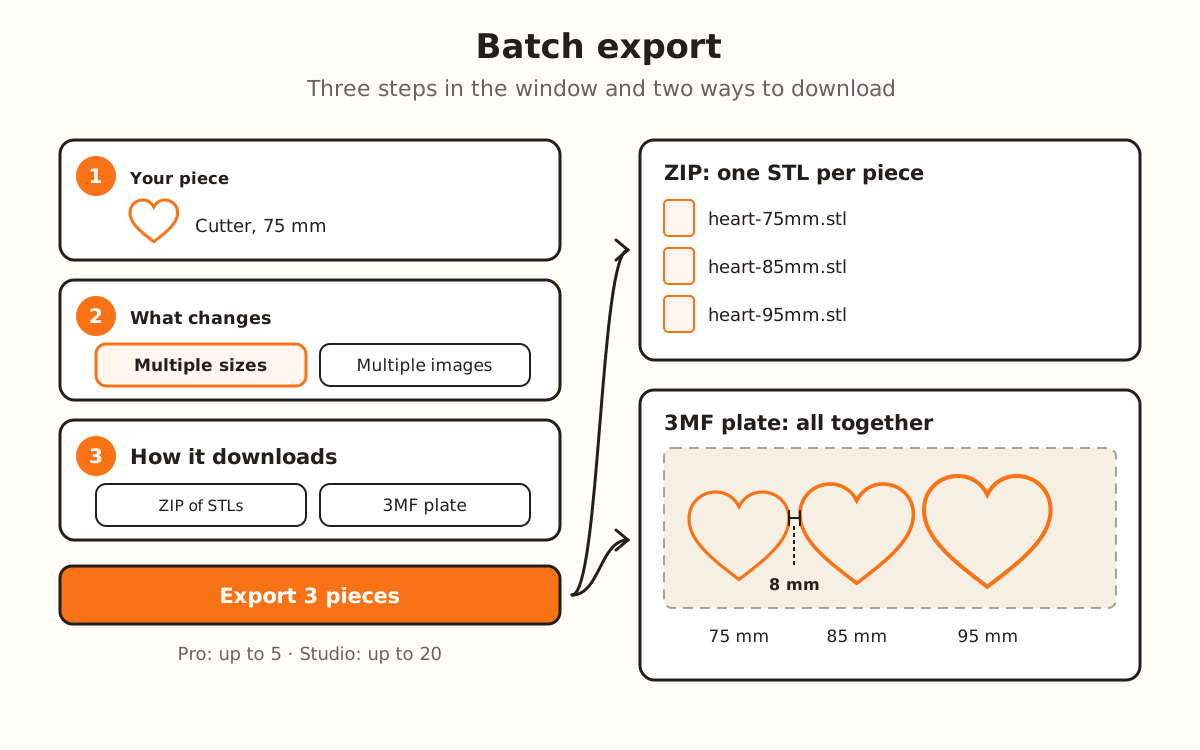
The three steps of the “Batch export” window (your piece, what changes on each piece and how it downloads) and the two outputs: a ZIP with one STL per size and a 3MF plate with the pieces 8 mm apart.
With the default values, “Several at once” sets 75, 85 and 95 mm.

What the batch does and doesn't do

Handled by the site
  • Builds each piece with the same engine as the designer, one after another, and shows you how each one is going
  • Repeats your current settings on every piece: thickness, walls, relief; only the size or the drawing changes
  • With “Width and Height”, it scales both measurements in the same proportion: the piece changes size, not shape
  • Traces each PNG or JPG image with your tracing settings; an SVG doesn't go through those settings
  • Leaves the pieces ready to print: oriented and with the wall text already flipped
  • Names each file with your design's name and the size (for example, heart-75mm.stl), or with each image's name
→ Up to you
  • →Changing different things on each piece: in a batch only the size or only the drawing changes
  • →Choosing the material or the print settings: that's done in your slicer
  • →More pieces than your plan allows: 5 per batch with Pro and 20 with Studio; for sizes, up to 8 different ones
  • →Fixing an image that can't be traced: that piece comes out with a warning and the rest carry on

How the batch works

Batch export repeats your piece many times in a single download. You have two ways: “Multiple sizes”, the same piece in several measurements, and “Multiple images”, a different drawing on each piece with your current settings.

Everything else stays the same on every piece: it's what you already set in the designer and want repeated. In “Multiple sizes” only the size changes, between 15 and 250 mm; in “Multiple images”, only the drawing.

When you tap export, the server checks your plan and the product just once. Then the pieces are built in your browser, one at a time, and at the end a single file downloads: a ZIP with one STL per piece, or a 3MF plate with all the pieces 8 mm apart, ready for the slicer.

It's part of the Pro and Studio plans: with Pro, up to 5 pieces per batch; with Studio, up to 20. On those plans downloads are unlimited, so the batch doesn't use up any allowance.

1

Build your piece and open the batch

In the designer, upload your drawing, pick the product and leave the settings the way you want them repeated. In the right-hand column, under “For selling in volume”, tap “Multiple sizes” or “Multiple images”.

Without a paid plan, the window says “Batch export is for paid plans”, with “See plans” and, if you haven't signed in, “Log in”.

2

Check “Your piece”

At the top you see the product that will come out and the drawing that gets repeated. If you want a different one, tap “Change product”: the list only shows the products that support that mode, free ones first. The ones that need a plan carry their tag, PRO or STUDIO.

3

Choose what changes on each piece

Under “What changes from piece to piece”, “Multiple sizes” is “The same piece in several sizes” and “Multiple images” is “A different drawing on each piece”. You can switch between them in the same window.

4

Set the sizes or pick the images

In “Sizes (mm)”, the first one is your piece's size. Change each number, tap “Add size” to add one (the last one plus the step) or the × to remove it.

For several at once, use “Several at once”: “From” (your current size), “Step” (10 mm) and “How many” (3). The window shows the sizes it will set, like “→ 75 · 85 · 95 mm”; tap “Use these”.

In “Multiple images”, tap “Choose images” and select your PNG, JPG or SVG files, up to your plan's limit. The list shows the name each piece will get; the × removes one.

5

Choose how it downloads

Under “How it downloads”, “ZIP with one STL per piece” puts each piece in its own file, with its name; “3MF plate” puts all the pieces in one file, laid out apart, ready for the slicer. Below it you see an example of the file name.

6

Export

At the bottom it says how many pieces your plan allows. Tap “Export 3 pieces” (the number changes with your batch). While it works, the window says “Piece 1 of 3…” and checks off each piece; “Cancel” stops it without downloading anything.

When it's done the file downloads and the window tells you, for example, “3 pieces ready: heart-lote.zip downloaded.”. If a piece failed, the list says which one and why; the others download anyway.

Quick tips
Name the design before exporting: it's the name of each file and of the ZIP or the plate.
Check one piece in the viewer before starting the batch: they all come out with those same settings.
“Several at once” removes repeated sizes and keeps them between 15 and 250 mm.
With the 3MF plate, the pieces reach the slicer separately and you can move each one on its own.
In “Multiple images”, name your files well: each piece carries its image's name, and if two have the same name, the second one comes out with -2.
OptionDefaultRange
Sizes (mm)Your piece's size15-250 mm, up to 8 sizes
FromYour piece's size15-250 mm
Step10 mm1-100 mm
How many31 to your plan's limit, up to 8
ImagesNonePNG, JPG or SVG, up to your plan's limit
How it downloadsZIP with one STL per pieceZIP or 3MF plate
Spacing on the 3MF plate8 mmFixed
PlanPieces per batchDifferent sizes
FreeNo batches-
ProUp to 5Up to 5
StudioUp to 20Up to 8

If something didn't go as expected

“Batch export is for paid plans”
The batch is part of Pro or Studio: tap “See plans”; if you've already paid, tap “Log in” with your account
“First build your piece: upload your drawing and come back here.”
Close the window, build the piece in the designer and open “Multiple sizes” again
“This product isn't built by size.”
Tap “Change product” and pick one that has a size, or use “Multiple images”
“This product isn't built from an image.”
Tap “Change product” or use “Multiple sizes”
The “Add size” button disappeared
You hit the limit: 5 with Pro, 8 sizes with Studio
A piece says “The image couldn't be traced.”
Try that image on its own in the designer or convert it to SVG; the other pieces already came out
A piece says “The engine couldn't build this piece.”
Build that size or that drawing in the designer to see what's failing
“This product needs another plan.”
The product you chose is on a higher plan than yours: change the product or the plan

Troubleshooting

The export button is grayed out
Cause: There's nothing to export: for sizes, the piece is missing or still being built; for images, you haven't chosen any.
Fix: Wait for the piece to finish building, or tap “Choose images”.
If it persists: If the product doesn't support that mode, the window says so: tap “Change product”.
Tapping export opened the sign-in window
Cause: You weren't signed in.
Fix: Sign in with your account and tap export again.
If it persists: If your account has a plan and it keeps asking you to sign in, sign out and sign back in.
“No connection. Try again.” shows up
Cause: The server didn't respond while checking your plan.
Fix: Check your connection and tap export again.
If it persists: Wait a moment and try again; if nothing changes, reload the page.
Several images came out with “The image couldn't be traced.”
Cause: The image didn't give an outline, or you ran many batches in a row: with a plan, the allowance is 80 images every 5 minutes.
Fix: If it was many batches in a row, wait a few minutes and repeat only the ones that failed.
If it persists: Upload that image on its own in the designer and adjust the tracing; or use an SVG, which doesn't go through the tracing settings.
I asked for 8 sizes and got fewer
Cause: “Several at once” removes repeats and doesn't go below 15 or above 250 mm, or past your plan's limit.
Fix: Lower the “Step” or the “From” so they all fit within the range.
If it persists: Add them by hand with “Add size” and type each number.
I canceled and nothing downloaded
Cause: “Cancel” stops the batch without downloading the pieces that were already done.
Fix: Tap export again with fewer pieces if you only wanted some.
If it persists: To avoid waiting, split the batch into two smaller ones.
I can't close the window
Cause: While the batch is working, the × and the Esc key don't close it.
Fix: Wait for it to finish or tap “Cancel”.
If it persists: When it's done, “Close” shows up.

Frequently asked questions

Which plan is it on?
Pro and Studio: with Pro, up to 5 pieces per batch; with Studio, up to 20. In “Multiple sizes”, 8 different sizes at most.
Does it use credits or downloads?
No. The batch is part of Pro and Studio, and on those plans downloads are unlimited.
What changes from one piece to the next?
Only the size, in “Multiple sizes”, or only the drawing, in “Multiple images”. The rest of your settings repeat the same on all of them.
ZIP or 3MF plate?
The ZIP has one STL per piece, each with its name. The 3MF plate has all the pieces in one file, 8 mm apart, so you can open them together in the slicer.
Does it work with every product?
“Multiple sizes”, with the ones that have a size in the panel (not the Stamp or the ones that don't use an image). “Multiple images”, with the ones built from an image, except the Multi-cutter. If the product doesn't work, the window says so.
Can I use a Pro or Studio product in the batch?
Yes, if your plan unlocks it. If not, when you export the window says “This product needs another plan.”.

Ready to make yours?

Upload your image and get a print-ready STL in seconds.

Batch export my piece →

Keep reading

Photo to sell: product photos of your piece →Cookie cutter set in several sizes →Print settings by product →Publish to your store from the designer →
KingsCutter

The most complete 3D cutter generator. Designed for bakers, available in 15 languages.

Quick contact
Product
  • 3D Editor
  • Tools
  • Library
  • Pricing
  • How it works
  • Gallery
Services
  • Get a quote
  • For sellers
  • Affiliates
  • Blog
Legal
  • Terms
  • Privacy
  • Refunds
  • Comparison
  • FAQ
  • Contact

© 2026 KingsCutter · Made for bakers around the world

kingscutter