KingsCutter
  • Library
  • Get a quote
  • Pricing
  • Calculator
  • Tutorials
Sign inStart free
Guides›Why the designer rejects your design (and how to fix it)
HELP 9 minUpdated: October 2026

Why the designer rejects your design (and how to fix it)

Quick answer

It's almost always one of four things: the file isn't PNG, JPG or SVG, it's over 8 MB, the image has no clear shape, or it has too much detail. Thicken the lines, clean the background and simplify: then it goes through.
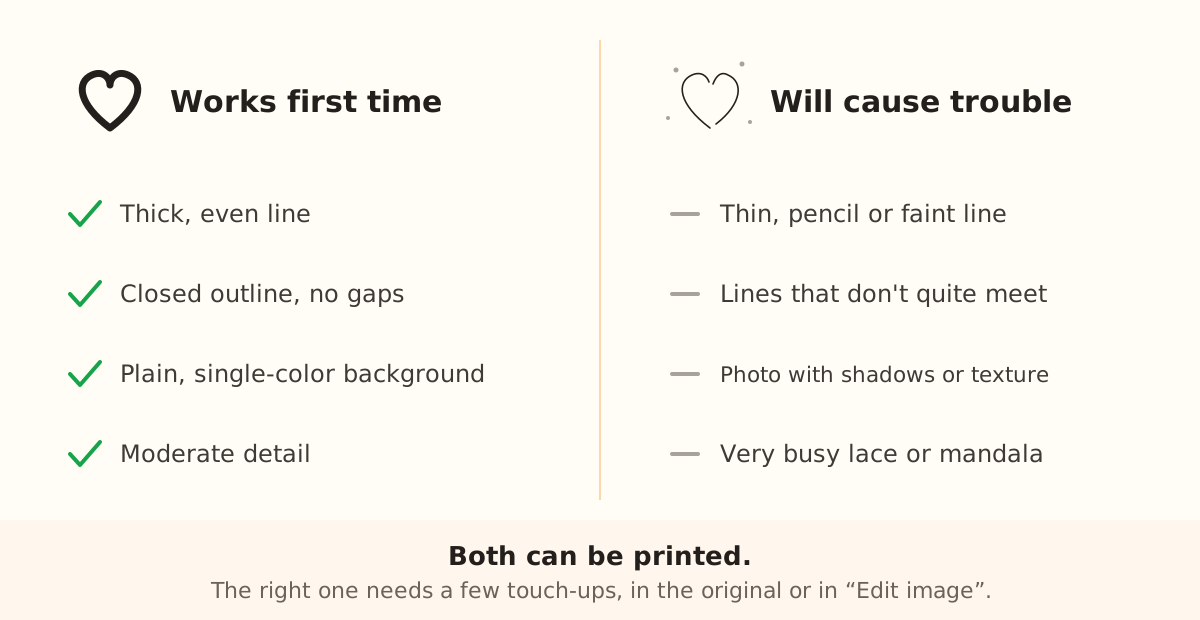
Comparison: on the left, a heart with a thick, closed line on a plain background; on the right, one with a thin, open line and smudges.
Both designs can be printed: the one on the right just needs thickening, closing and cleaning up, in the original or with the “Brush” and “Eraser” in “Edit image”.

What the designer checks before giving you the piece

The designer doesn't look at your image like a photo: it looks for a dark shape on a light background and traces its outline. That outline is what later gets raised into 3D. If the shape doesn't stand out from the background, there's no outline to trace and the process stops right there.

Then it cleans up the trace: in almost every product, specks that don't touch the drawing and measure less than 1.5 mm at the chosen size are removed automatically, because they couldn't be printed. A notice tells you, but nothing stops.

Finally it builds the piece in your browser. The trace is simplified down to a maximum of 6,000 detail nodes (fewer on devices with little memory), and if the drawing still doesn't fit in the available memory, generation stops so you don't get a badly made piece.
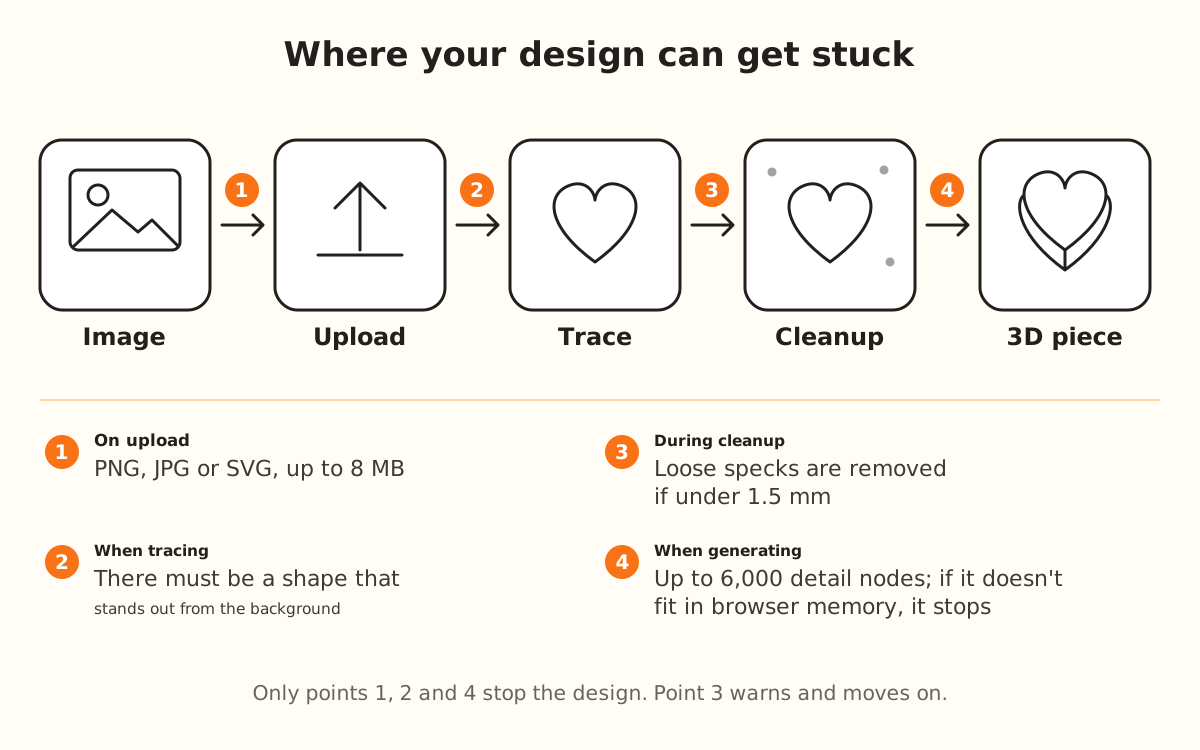
Diagram of a design's journey: image, upload, trace, cleanup and 3D piece, with four numbered checkpoints.
An outline that doesn't stand out from the background is the most common cause of rejection: without contrast, the designer can't tell what's shape and what's background.
1

Check the file format and size

The designer accepts PNG, JPG and SVG, up to 8 MB. iPhone photos in HEIC, WEBP files and PDFs won't go through: open them in any editor and save them as PNG or JPG.

If the photo is over 8 MB, crop it to the area of the drawing or export it at a lower resolution. The designer works with the image at 1,024 px on its longest side, so a huge photo doesn't add any more detail.

2

Leave a single shape with good contrast

The ideal is a dark drawing on a white background: a plain background is removed automatically. If it's a photo or a logo with a colored background, use “Clean background with AI” (1 credit, PNG or JPG only) or “Clean background” inside “Edit image”.

If the drawing is light on a dark background, or the lines get lost, invert the colors or raise the contrast in a photo editor before uploading, or go over the drawing with “Brush” and “Eraser” in “Edit image”. A transparent PNG with a light drawing gets inverted automatically.

3

Thicken thin lines

A pencil line looks fine on screen but can't be printed. In “Edit image”, with PNG or JPG, the “Reinforcement intensity” thickens the outer outline of the shape; the lines inside don't change: go over them thicker with the “Brush” or in the original drawing.

On stamps, “Thicken thin lines” is on by default: lines under 0.5 mm are brought up to the printable minimum automatically. If you turn it off and there are thin lines, a warning shows up.

4

Lower the detail if generation stops

If you see “This drawing has too much detail”, the design is too heavy for your browser's memory. Simplify the image: erase fill and texture with the “Eraser” in “Edit image” or in the original, and upload it again.

Below the image you'll see the “Traced · N nodes” counter: the simpler the image, the lower the number. For reference, the designer works with up to 6,000 nodes, and fewer on devices with little memory.

5

Match the size to the detail you want to keep

In almost every product, loose parts under 1.5 mm are removed during cleanup. If a part you care about disappears, make the piece bigger with “Overall size” (you type it in the field, from 30 to 1000 mm) or connect that part to the rest of the drawing.

The same happens with the Stencil: if the design is too detailed for its size, the sheet comes out blank and the designer warns you. Make the shape bigger or simplify the drawing.

If your design hasFixWhere
A colored background or it's a photoRemove the background“Clean background with AI” or “Clean background” in “Edit image”
Pencil or faint linesThicken“Reinforcement intensity” (the outline) or redraw thicker
Lace, mandala or lots of textureLower the detailSimplify the original or erase with the “Eraser”
Light drawing on a dark backgroundInvertIn an editor, before uploading (a transparent PNG inverts automatically)
Loose dots around itNothing: they're removed automaticallyNotice “We removed N loose specks”
Very small letters or detailsMake the piece bigger“Overall size”
Over 8 MBCrop or export smallerBefore uploading

The message you see and what to check first

“Supported formats: PNG, JPG, SVG”
The file is HEIC, WEBP or PDF. Save it as PNG or JPG.
“The file is too large (max 8 MB)”
The file is over 8 MB. Crop it or export it smaller.
“No shape detected in the image”
There's no shape that stands out from the background. Raise the contrast or invert the colors in an editor and upload it again.
“The shape is too simple to process”
What's left of the shape is barely a smudge: the lines are too light or too thin. Go over them darker and thicker and upload it again.
“This drawing has too much detail”
Too much detail for the browser's memory. Simplify the image: remove fill and texture.
“Too many attempts in a row”
You uploaded or adjusted many times in a row. Wait about 5 minutes and try again.
“Mesh issue detected: …”
The piece was generated, but with an open edge somewhere. Simplify the drawing: the piece rebuilds itself when you change it.

Troubleshooting

I upload a photo from my phone and it says the format isn't valid
Cause: Many phones save photos as HEIC or WEBP, and the designer only accepts PNG, JPG and SVG.
Fix: Open the photo in your gallery or any editor and share or save it as JPG.
If it persists: Take a screenshot of the photo: screenshots are saved as PNG and go through with no problem.
I get “No shape detected in the image”
Cause: The shape doesn't stand out from the background: low contrast, very light lines, or a background in the same tone as the drawing.
Fix: Raise the contrast in a photo editor, or invert the colors if the drawing is light on dark, and upload it again. If it's a photo, try “Clean background with AI”.
If it persists: Trace the drawing with a black marker on white paper, take a photo in good light and upload it again.
Generation stopped with “This drawing has too much detail”
Cause: The drawing has more detail than your browser's memory can process. On devices with little memory, the detail limit is lower.
Fix: Simplify the image (remove fill, texture and shadows) and upload it again, until the “Traced · N nodes” counter clearly drops.
If it persists: Try from a computer with more memory, or use the “Eraser” in “Edit image” to erase the most detailed areas.
Small parts of my design disappeared
Cause: In almost every product, parts that don't touch the main drawing and measure less than 1.5 mm at the chosen size are removed, because they couldn't be printed.
Fix: Make the piece bigger with “Overall size” or connect those parts to the main drawing before uploading.
If it persists: Connect the loose parts to the drawing with the “Brush” in “Edit image”: once connected, they're no longer removed.
The stamp warns “Lines thinner than printable detected”
Cause: You turned off “Thicken thin lines” and there are lines below the minimum thickness (0.5 mm by default) that the printer can't reproduce.
Fix: Turn “Thicken thin lines” back on (it shows up next to the warning): the designer brings them up to the printable minimum on its own.
If it persists: Redraw the design with a thicker line: the “Reinforcement intensity” only thickens the outer outline, not the lines inside.
The Stencil comes out as a blank sheet, without the drawing
Cause: The design is too detailed for the size of the sheet and can't be cut through.
Fix: Increase the size of the shape or pick a simpler design, with bigger open areas.
If it persists: Simplify the drawing or consider another product, like the Stamp or the Imprint Cutter.
I get “Too many attempts in a row”
Cause: Every time you upload or edit the image it gets traced again, and there's a limit on traces in a row so the service doesn't get overloaded.
Fix: Wait about 5 minutes and try again. Make your changes calmly: each one can count as a new trace.
If it persists: If the message doesn't go away after waiting, write to us from the support page.

Frequently asked questions

Can I upload a photo?
Yes, as PNG or JPG. It works best with the object on a plain background. If the background has color or texture, “Clean background with AI” erases it for 1 credit, and if the AI fails you're not charged.
What about a PNG with a white or transparent background?
That's the ideal case: a dark drawing on white. PNGs with a transparent background work too, and if the drawing is light, the designer inverts it automatically.
How much detail can it handle?
Up to 6,000 detail nodes in total; each outline is simplified automatically down to 1,500 points. On devices with little memory the limit goes down. The “Traced · N nodes” counter tells you where you are.
Why does it look good on my phone but bad when printed?
The screen shows pixels; the printer lays down plastic with a minimum thickness. A line that looks sharp on screen can be thinner than the nozzle can make: that's why it pays to thicken before printing.
Do I lose credits if the design fails?
No. Uploading the image and seeing the piece in 3D doesn't use credits. AI features cost 1 credit and, if they fail, the credit is refunded.

Ready to make yours?

Upload your image and get a print-ready STL in seconds.

Back to the designer →

Keep reading

Your first cutter →Basic cutter →Custom Imprint Cutter →Best filaments →
KingsCutter

The most complete 3D cutter generator. Designed for bakers, available in 15 languages.

Quick contact
Product
  • 3D Editor
  • Tools
  • Library
  • Pricing
  • How it works
  • Gallery
Services
  • Get a quote
  • For sellers
  • Affiliates
  • Blog
Legal
  • Terms
  • Privacy
  • Refunds
  • Comparison
  • FAQ
  • Contact

© 2026 KingsCutter · Made for bakers around the world

kingscutter